
OpenCart
This document provides step-by-step instructions for integrating MISPay with OpenCart websites. The goal is to help merchants and developers set up the payment method quickly and easily.
Document Contents
The contents of this document include:
- General Flow and Diagram: A visual representation of the integration steps.
- Credentials: Information on the credentials required to access the "MISPay" Merchant API.
- Environments: Sandbox and Production environments.
Once you submit the required details, the MIS Pay team will register your merchant account and provide the following credentials:
- Application Identifier (App ID): A unique identifier for the merchant.
- Application Secret (App Secret): An encryption secret created specifically for the merchant.
- Widget Key (Access Key): An unique key for merchant.
- Sandbox Test User: Test user credentials for Merchant Panel to use on the sandbox environment .
With this information, merchants can integrate their system with MIS-Pay in its sandbox environment. After the integration is completedand tested, the merchants can request their production credentials from the MIS-Pay team.
Below are step-by-step instructions to activate MISpay plugin:
Step 1
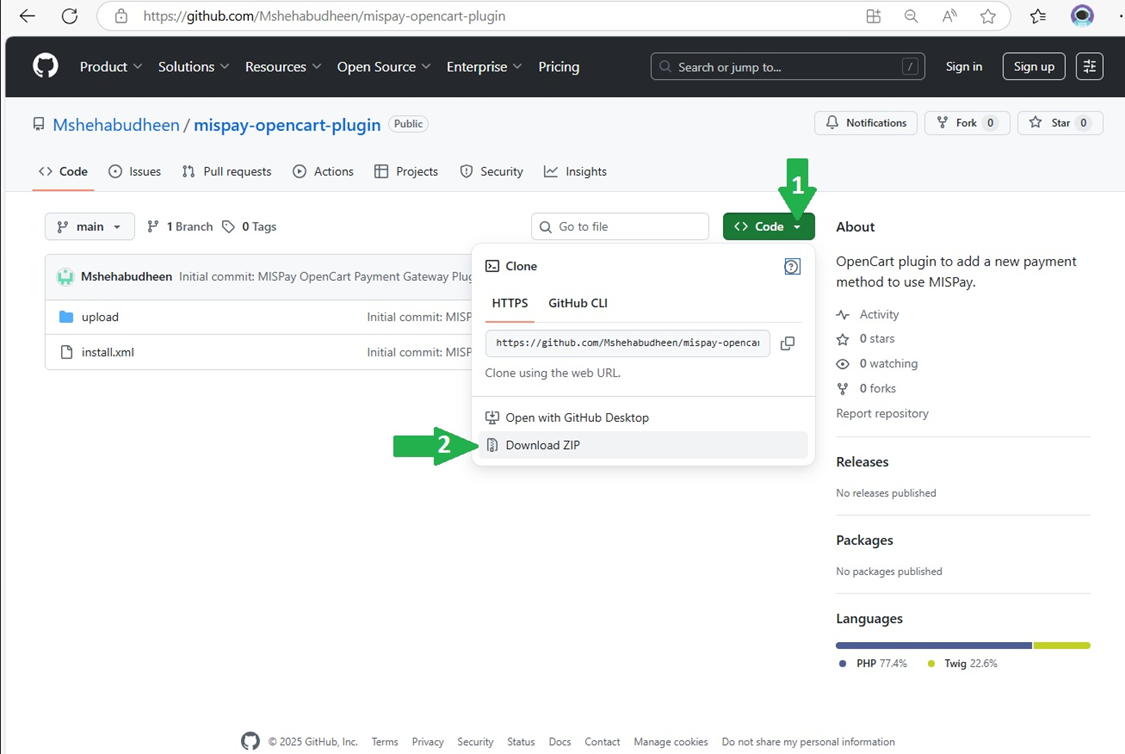
Download the ZIP file from the link provided below. And make sure to rename the ZIP file by adding "ocmod" at the end of the file name.
GitHub URL : https://github.com/Mshehabudheen/mispay-opencart-plugin.git
Step 2
Log in to your OpenCart website as an administrator. Then, navigate to Extensions → Installer. You should see a page similar to the one shown below:
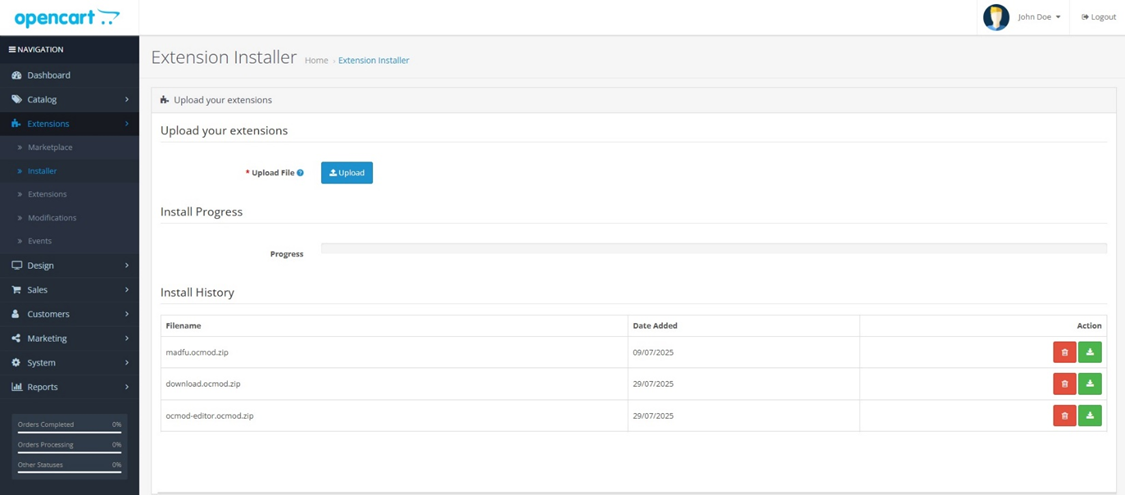
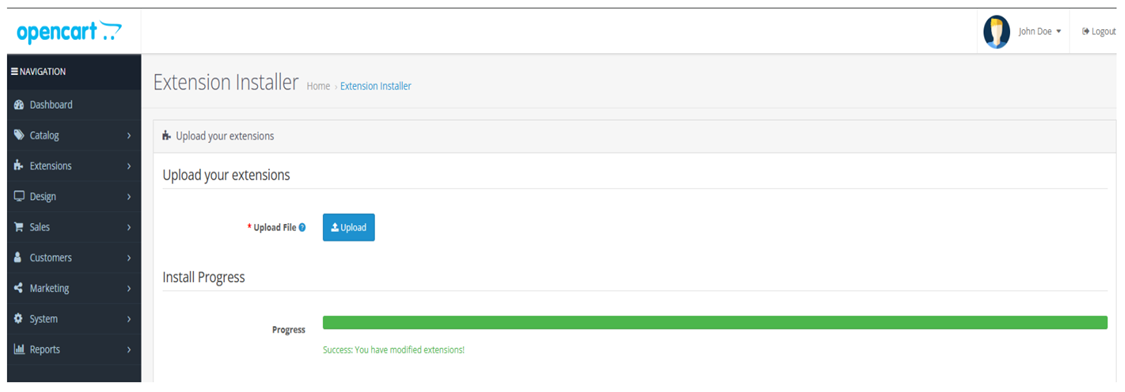
click on the Upload button and select the Downloaded ZIP file to proceed with the installation:
Step 3
Navigate to Extensions → Extensions, then select Payments from extension type dropdown list as below:
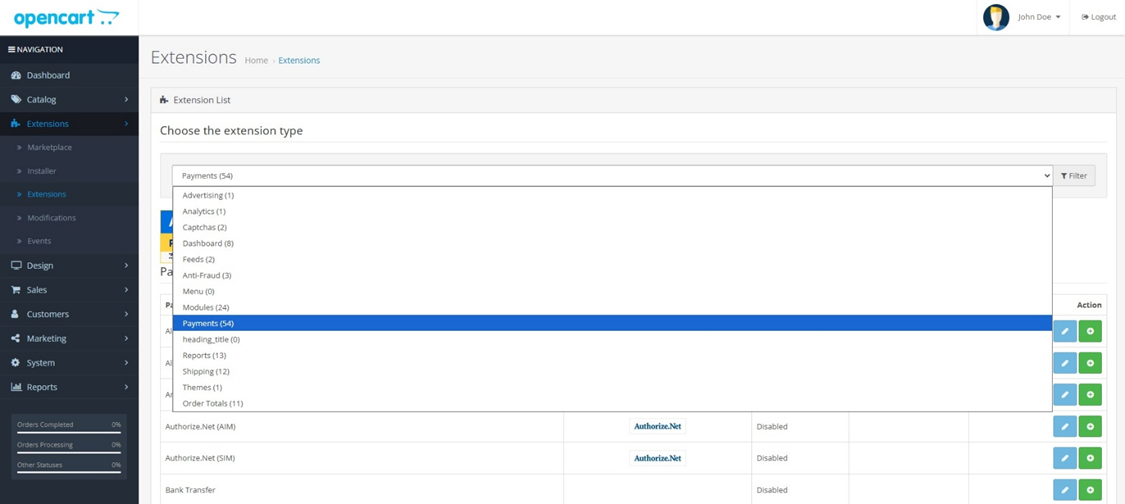
Look for MISPay in the list of available extensions. Once you find it, click on the Install button:
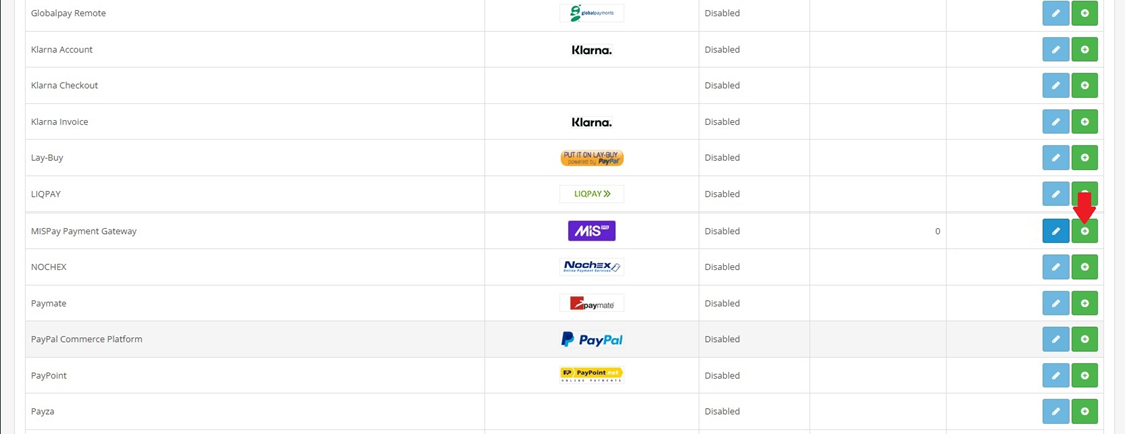
Step 4
Once the installation is complete, click on the Edit button next to MISPay:
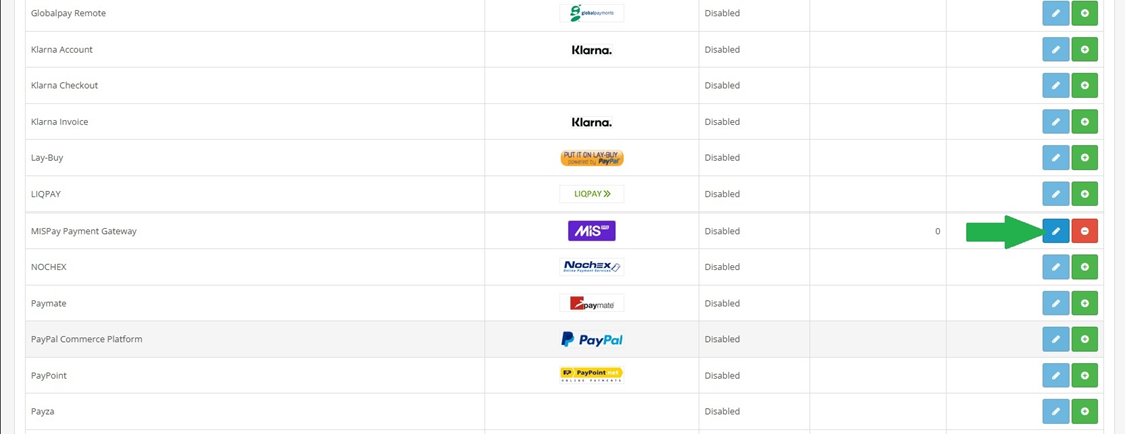
You will be taken to a configuration page:
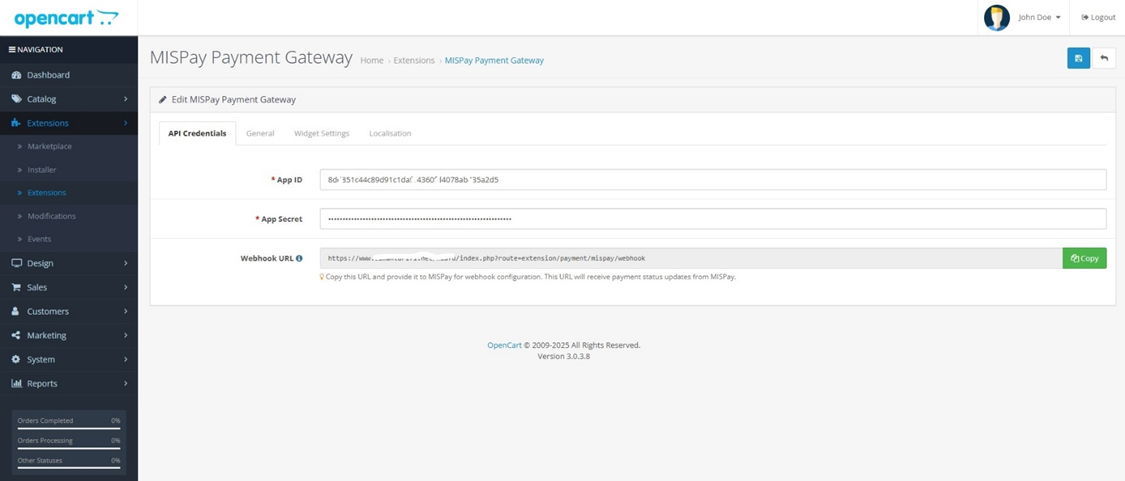
1- API Credentials
You need to insert “App ID” and “App Secret” which you have received from MISpay team.
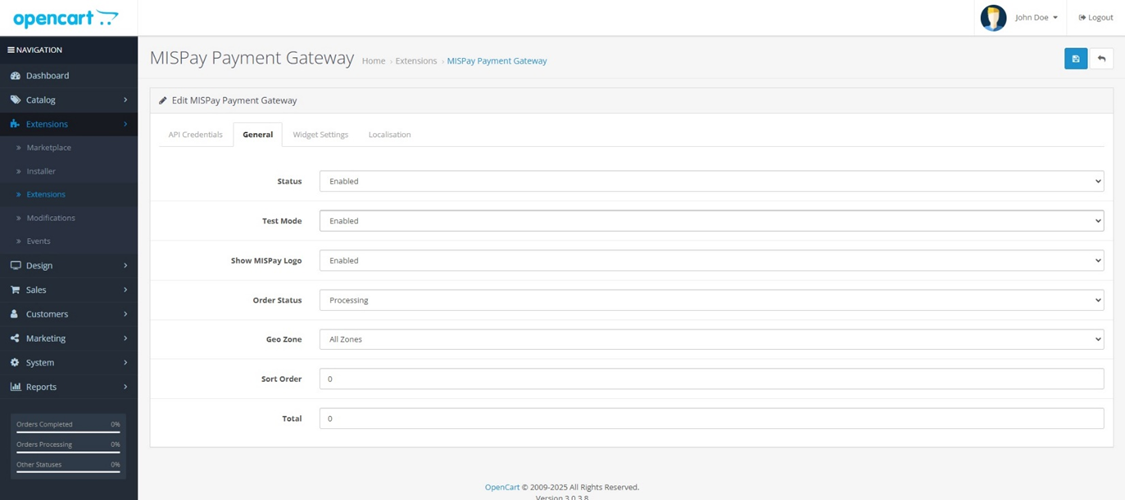
2- General
please set the values as below image:
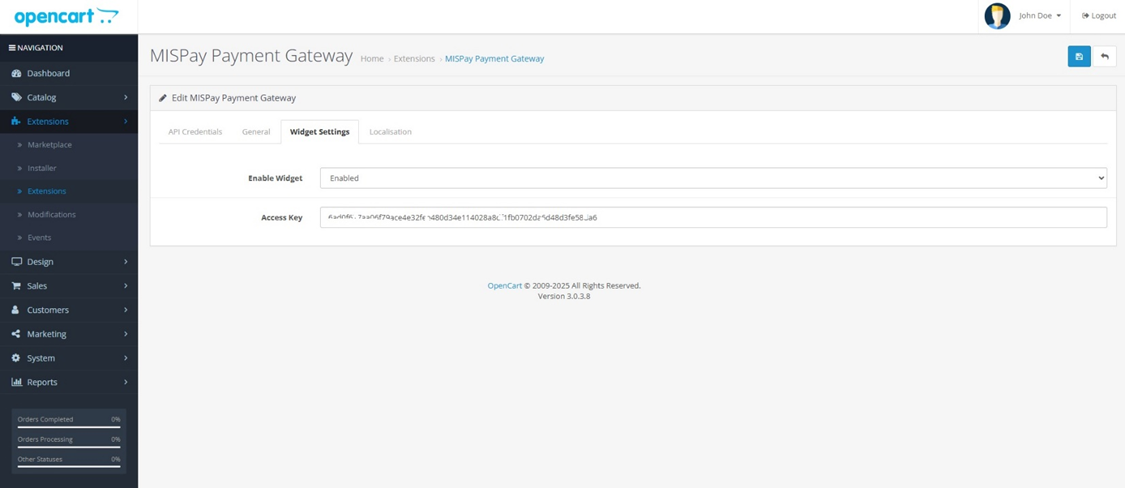
3- Widget Setting
Enable Widget and insert the “Access Key” which you received from MISpay team.
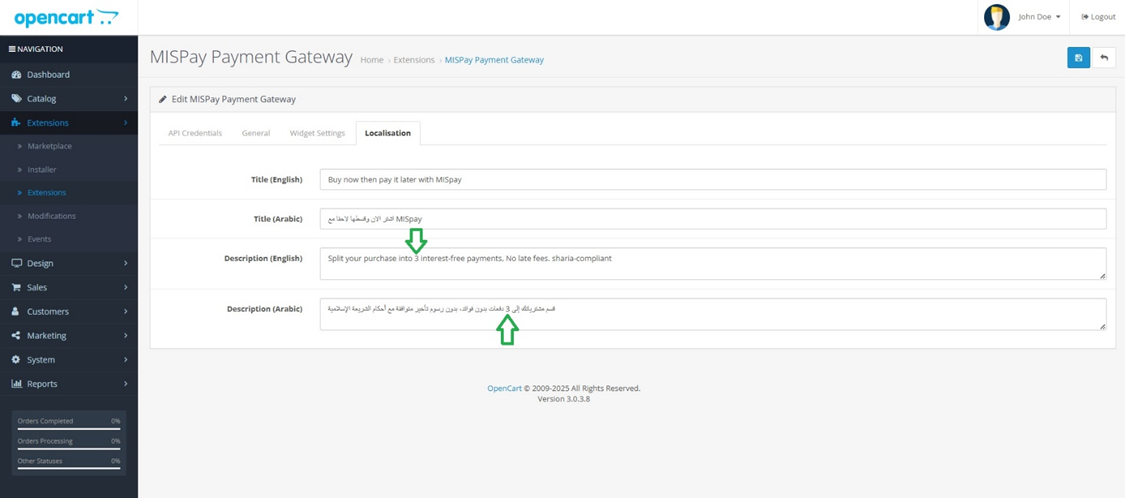
4- Localization
you only need to change the number of installments:
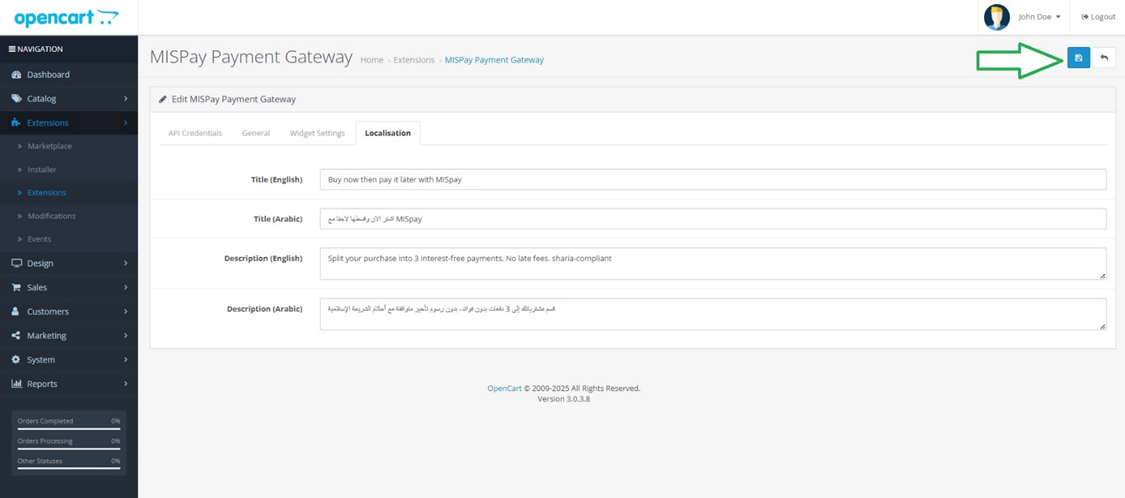
5- Save Configuration
After you finish all configurations, click on save button as below:
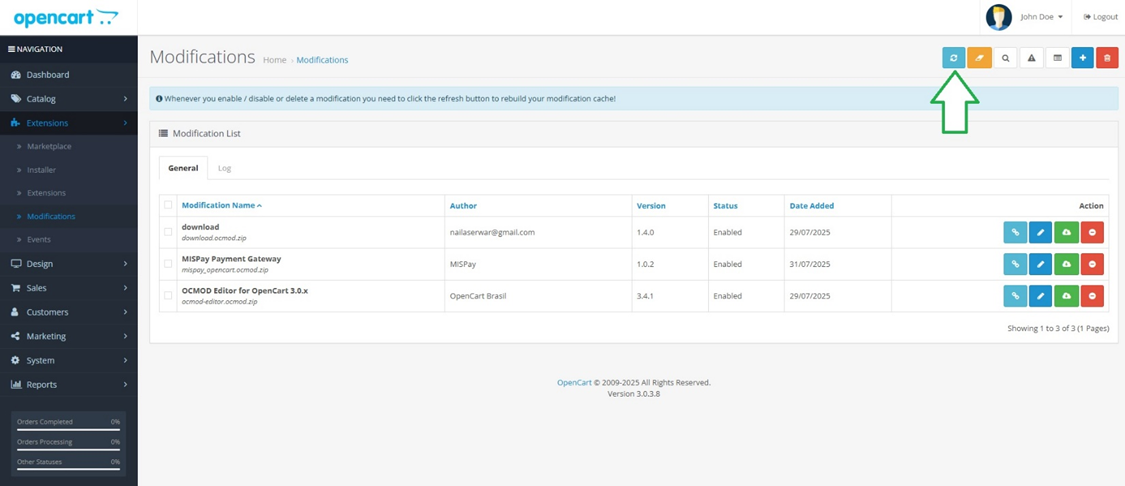
Step 5
Navigate to Extensions → Modifications, then click the Refresh button located at the top of the page
If you encounter any issues, or you need further assistance, feel free to contact MISpay Team any time.
Updated 7 months ago