
Widget Integration
This document provides step-by-step instructions for integrating the MISPay Widget JavaScript SDK into your web application. The SDK includes a
Prerequisites
Before integrating the MISPay Widget JavaScript SDK, ensure you have:
-
An access key for SDK authorization.
You will get the “access key” when you provided your domain (the address of your website) to us.
-
Access to your website's source code
Step-by-Step Integration Guide
Step 1: Adding the SDK Bundle to Your Web Page
- Include the SDK Bundle in Your Web Page:
-
- Add the following
scripttag with a defer attribute to theheadsection of your HTML document. Replace[ACCESS_KEY]with your provided access key. - Example:
<html lang="en"> <head> .... <script defer src="https://widget.mispay.co/v1/sdk.js?authorize=[ACCESS_KEY]"></script> </head> <body> ... <mispay-widget amount="100" lang="en"></mispay-widget> ... </body> </html>Widget URLs:Depending on the environment you are working in, please make sure to use the corresponding URL and Access Key
Production: https://widget.mispay.co/v1/sdk.js?authorize=[ACCESS_KEY]
SandBox: https://widget-sandbox.mispay.dev/v1/sdk.js?authorize=[ACCESS_KEY}
- Add the following
Step 2: Adding the Custom Element
-
Place the Custom Element:
-
Add the
mispay-widgetelement to thebodyof your HTML document where you want the widget to appear.

-
Configure the Custom Element:
-
The
mispay-widgetelement has two attributes:langandamount -
The
amountattribute is mandatory and should be specified with the purchase amount. -
The lang attribute is optional and can be used to set the language of the widget. If it’s not provided, web site’s language or user bowser language will be used. Supported languages are Arabic
arand Englishen -
Example:
<mispay-widget amount="150" lang="en"></mispay-widget>
<mispay-widget amount="150" lang="ar"></mispay-widget>
-
Step 3: Testing
-
Verify the Integration:
-
After adding the SDK bundle and the custom element to your web page, load the page in a web browser.
-
Ensure that the
mispay-widgetappears correctly and functions as expected. -
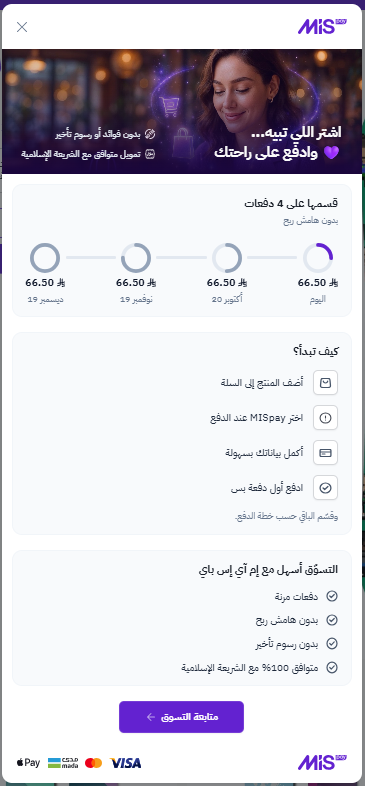
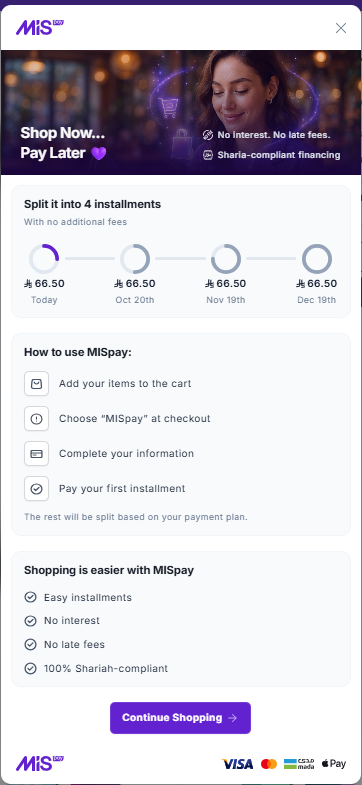
When the widget is clicked, payment plan modal should be visible.
-
-
Troubleshooting:
- If the
mispay-widgetdoes not appear:- Ensure that the SDK bundle script tag is correctly included in the
headsection and that the custom element is correctly placed in thebody. - Check your access key you have is correct and valid.
- If you think that your access key is valid and you can still not see the widget in your page;
- Open inspector in your browser and go to network tab
- Find the sdk request to https://widget.mispay.co/v1/sdk.js?authorize=[ACCESS_KEY] , Check the response.
- You can see the error code in the response. In order to see what went wrong, please check the error codes section below.
- Ensure that the SDK bundle script tag is correctly included in the
- If the widget does not function correctly, check the console for JavaScript errors and ensure that the
amountattribute is correctly set.
- If the
-
Error codes
ME15: The access key can not be found.ME16: Origin is not available.E9999: Unknown Exception.
Updated about 1 month ago