
Create New Order
This feature was found to enable offline purchases for the customers who want to benefit from MISpay through any point of sale (POS).
Merchant’s employee can facilitate this process through the merchant panel by following these steps:
-
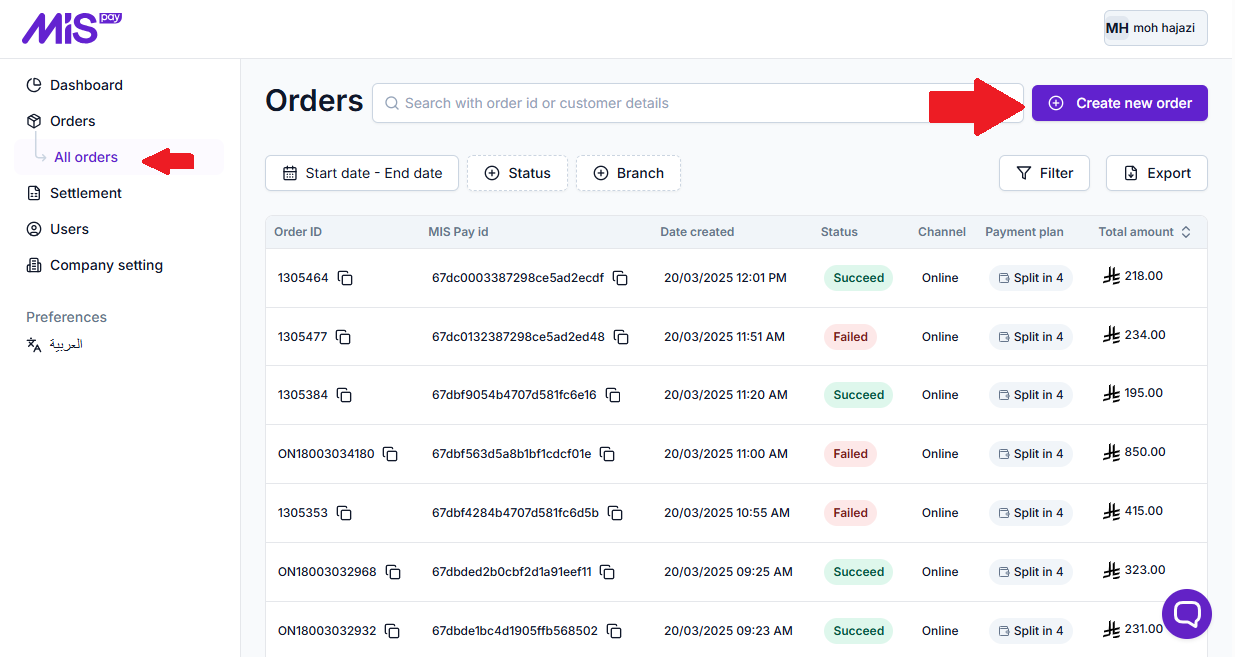
From the side menu, under “Orders” section, Click “All orders” tab.
-
From Orders Secreen, Click “Create new order” button:
-
From the “Create new Order” screen, enter the below information:
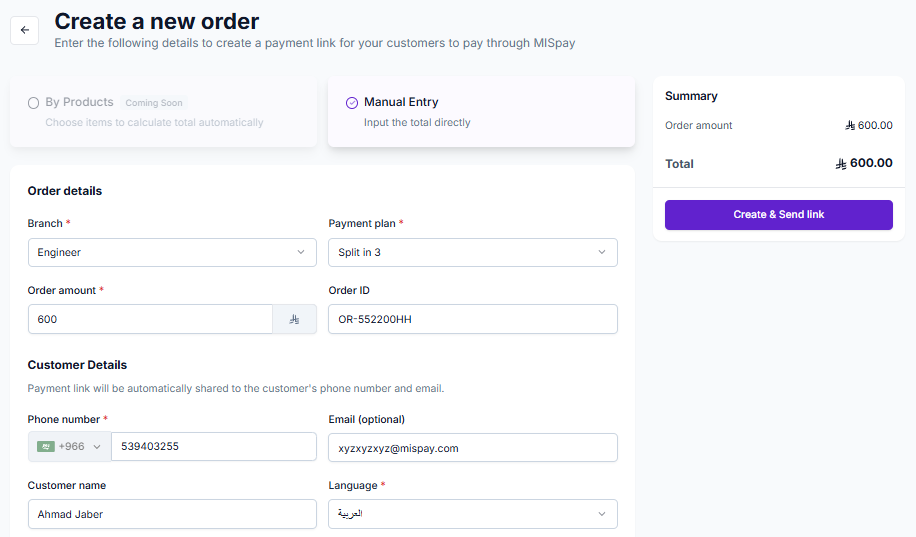
- Branch (Mandatgory): Select the branch where you want to create the order.
- Payment Plan (Mandatgory): Choose one of the available installment plans from the dropdown menu.
- Order Amount (Mandatgory): Enter the total amount of the order, including taxes and any additional fees, after applying any discounts.
- Order ID (Optional): A reference code from the merchant side representing the bill number. This field can be left blank and edited later if needed.
- Phone number (Mandatgory): The customer’s phone number where the payment link will be sent.
- Email (Optional): Customer email.
- Customer name (Optional)
- Language (Mandatory): Select the preferred language in which the customer will receive the payment link.
-
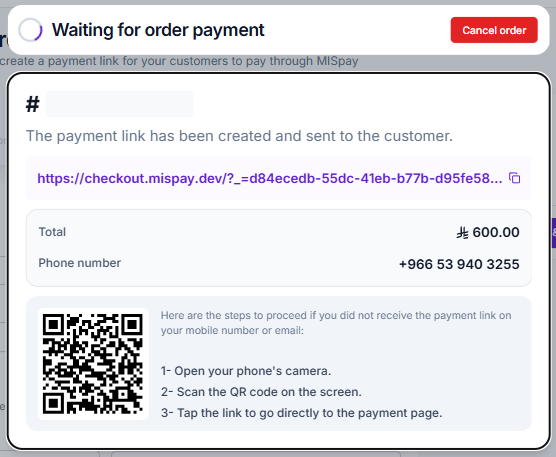
After filling in all the required information, click the "Create & Send Link" button. The customer will instantly receive the payment link. If, for any reason, the link is not received, you can resend it manually, or the customer can scan the QR code displayed on the merchant's screen:
-
The merchant will wait for the customer to complete the payment. In the meantime, the merchant has the option to cancel the order if needed.
-
Once the customer complete the payment successfully, the new order will be placed in order table, and the merchant can now proceed delivering selected items for the succeed order.
Updated over 1 year ago