
Overview
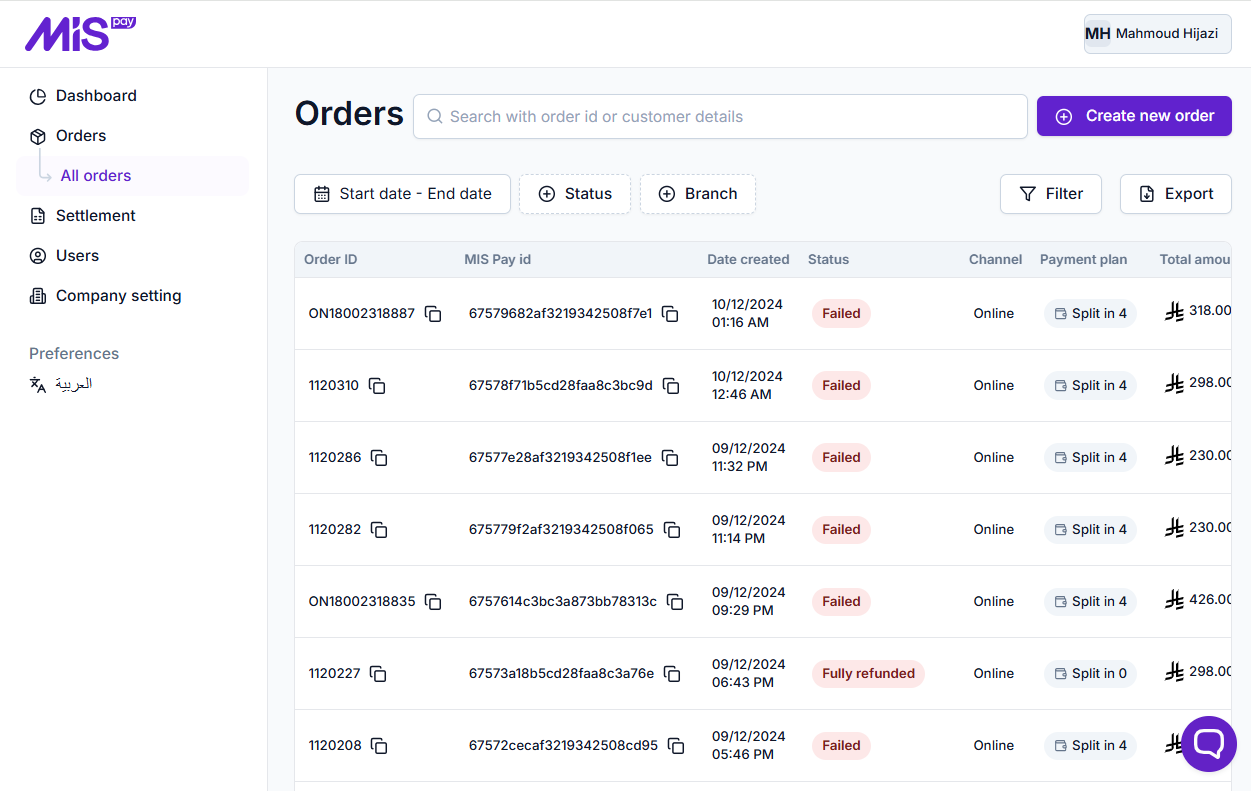
This is where you can find all order attempts from your store via MISpay. The table includes the following details:
-
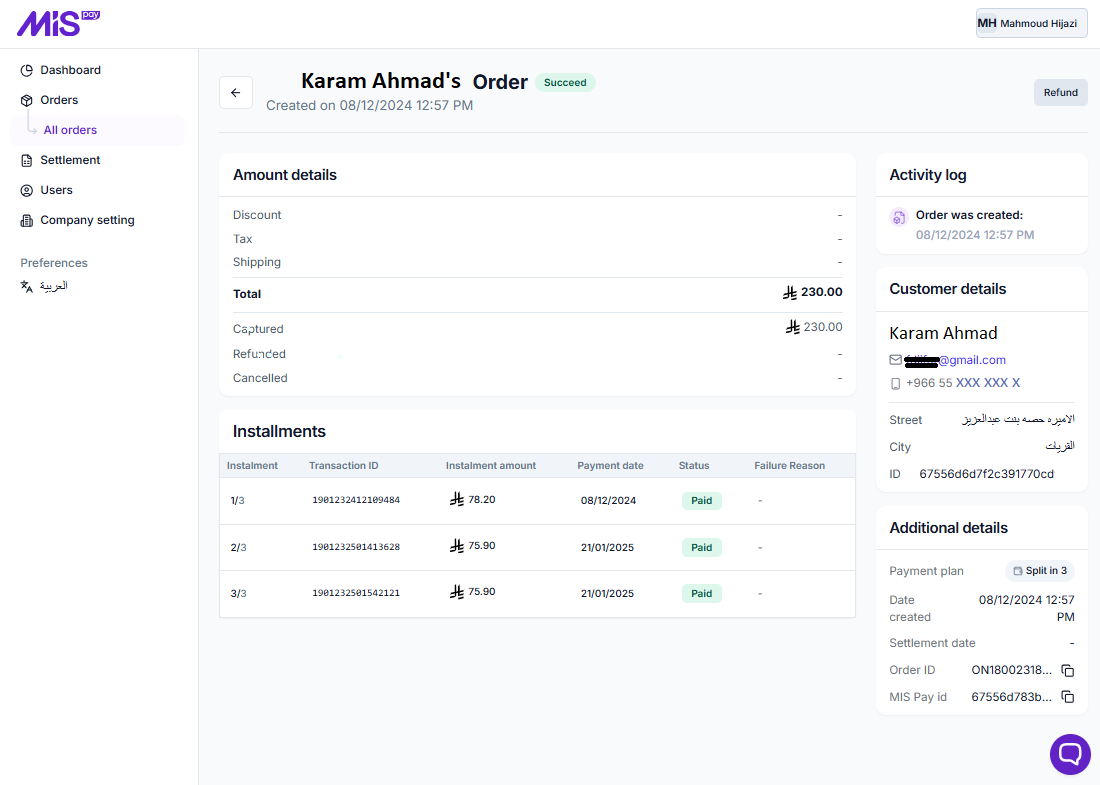
Order ID: This is a unique identifier imported from the merchant's system. Clicking on it will open the full order details, as below:
-
Purchase ID: this is a unique identifier generated by the MISpay system.
-
Date created: The exact date and time when the order was placed.
-
Status: Describes the current state of the order and how it was processed. It can be one of the following:
- Succeed
- Pending
- Canceled
- Failed
- Fully Refunded
- Partially Refunded
- Channel: Indicates how the order was placed:
- Online: Orders placed directly by customers through the merchant's website.
- Offline: Orders placed by a merchant's employee using the "Create New Order" feature in the Merchant Panel.
- Payment plan: The number of installments for each order.
- Total amount: The full amount of the order, including taxes, fees, discounts, and any other applicable charges.
Above the Orders Table, you will find a variety of tools to manage and monitor your orders, including the following:

-
Search Bar: Allows you to search using the Order ID, customer details, or any part of them.
-
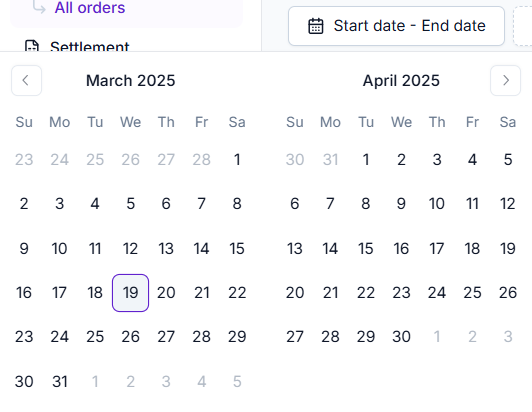
Period Selection: Allows you to filter and list orders in the table based on your desired date range.
-
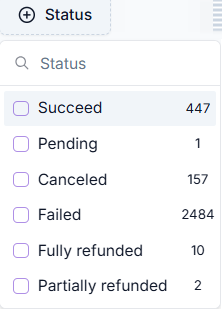
Status: Allows you to filter orders based on their current status.
-
Branches: Displays orders based on the selected branch.
-
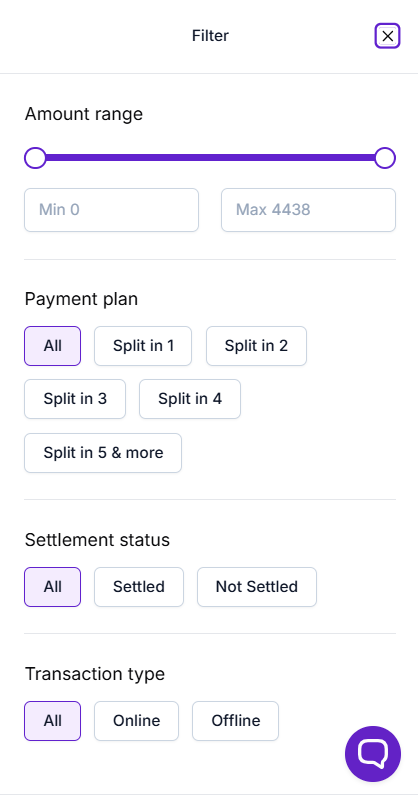
Filter: Opens advanced filtering options to display orders based on your selected criteria.
-
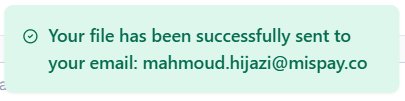
Export: Clicking this button will automatically send an exported sheet of the current orders list to your registered email.
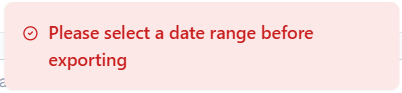
Note: You must select a date range before exporting the sheet; otherwise, you will receive the below message.
Updated over 1 year ago